GoDaddy.com is #1 domain registrar and one of the most popular web hosting providers worldwide.
Their prices are very competitive and you don't have to sign up long-term contracts. We experimented with this hosting provider for some time. Based on our experiences, we can say that GoDaddy Linux hosting packages are 100% compatible with Joomla.
GoDaddy also have a way to install Joomla quickly for your hosting account. We will explain the procedure here in all possible details.
1. Login to www.godaddy.com and click Hosting from the left menu. Then click Manage next to your hosting account name. This will lead you to the hosting control panel.
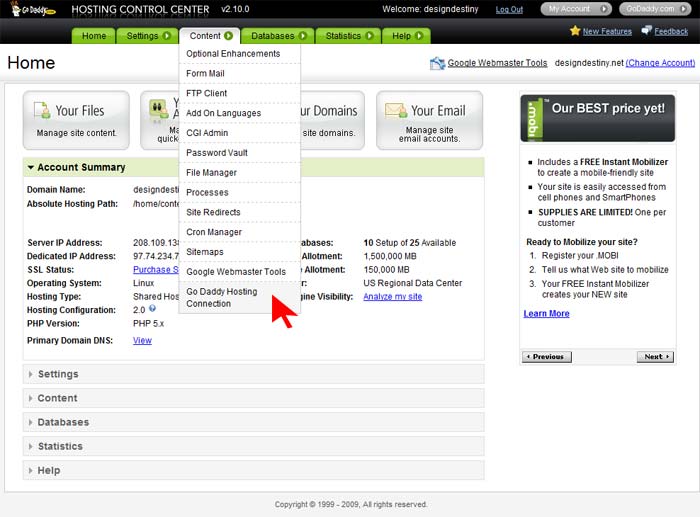
2. In hosting control panel, under Content menu item, click GoDaddy Hosting Connection submenu link.
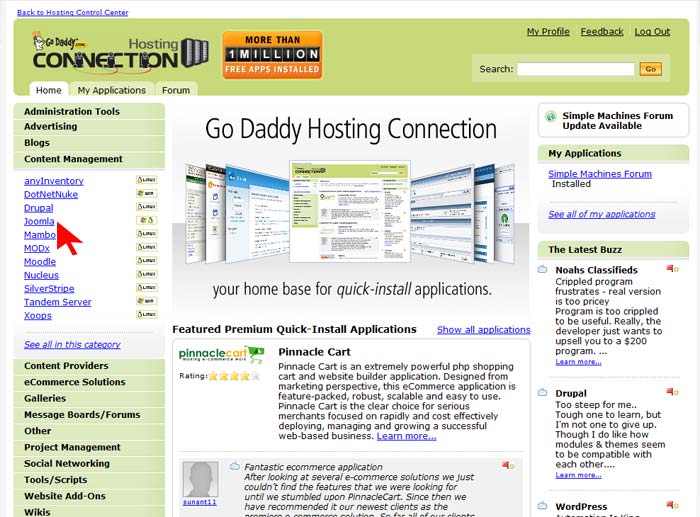
3. You are now on GoDaddy Hosting Connection page. Under Content Management menu item (left menu), click Joomla.
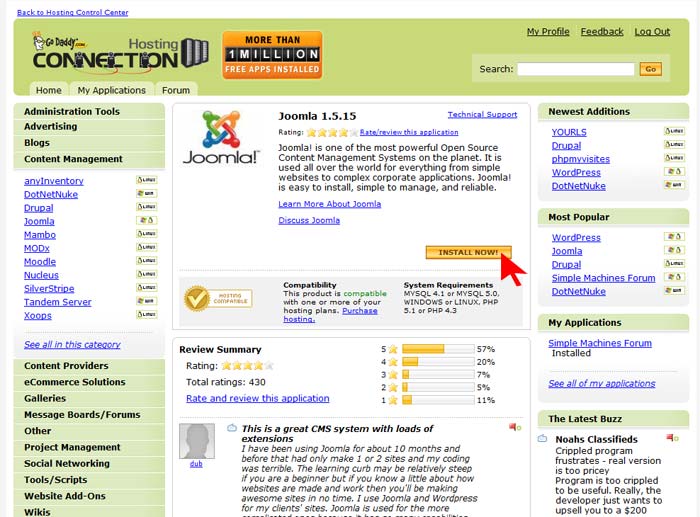
4. As you already know, Joomla is second to none! :) However, on the next page, you can see reviews about Joomla from other GoDaddy users. On this page, you can check if your GoDaddy hosting package is compatible with Joomla or not. If yes, you can proceed by clicking the yellow Install Now! button. Please wait several seconds until your request is processed.
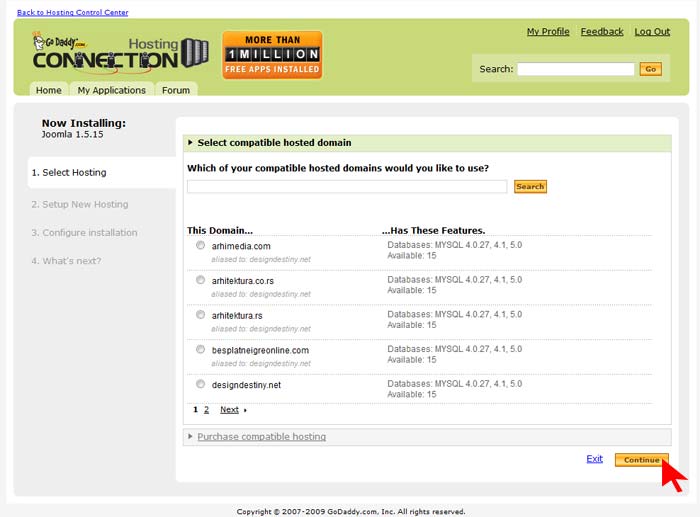
5. Now, you see the list of your domains where you can install Joomla. Keep in mind that your account must have at least one free MySQL database available. Select desired domain and click Continue button.
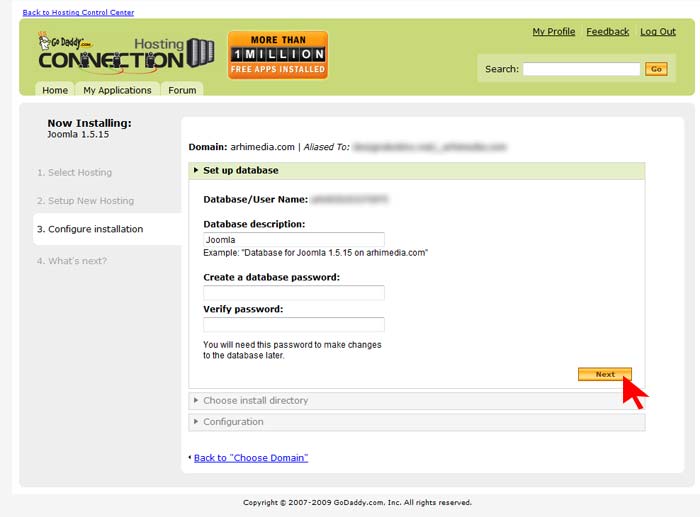
6. On the next screen you should configure several options needed for your Joomla installation.
a) Set up database: GoDaddy automatically created database for you and assigned an user with the same name to it. So, you should only enter database pasword twice under this tab. Keep in mind that your password must be 7-14 characters long and have at least one uppercase letter, one lowercase letter and one number.
a) Set up database: GoDaddy automatically created database for you and assigned an user with the same name to it. So, you should only enter database pasword twice under this tab. Keep in mind that your password must be 7-14 characters long and have at least one uppercase letter, one lowercase letter and one number.
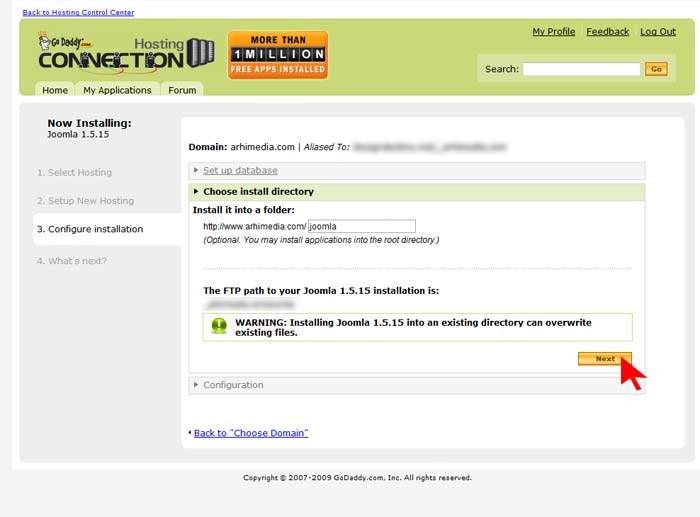
b) Choose install directory: Decide whether to install Joomla in a subdirectory on in the root. If you want to install in the root, leave this field empty, otherwise type subdirectory name. If you already have Joomla installed in the selected directory, it may be overwritten. Proceed by click on the Next button.
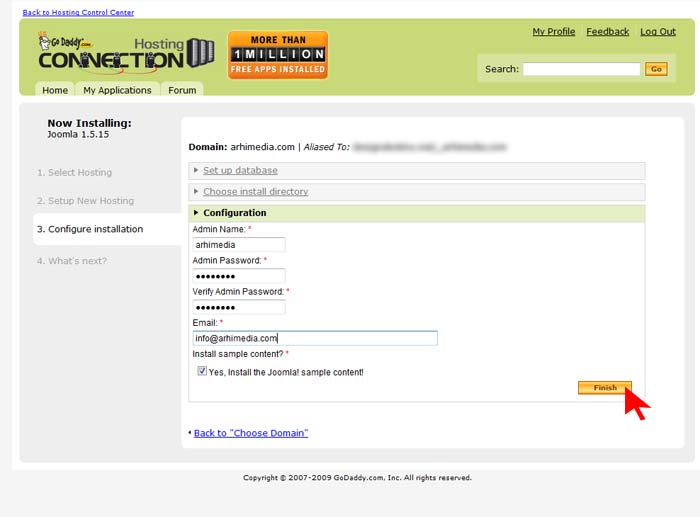
c) Configuration: Here you should enter information about your Joomla superadministrator's account. You need to enter superadministrator's username, password and valid e-mail address. For Joomla newbies, it is strongly recommended to install Joomla sample data, so leave the last option selected. Finally, click the Finish button.
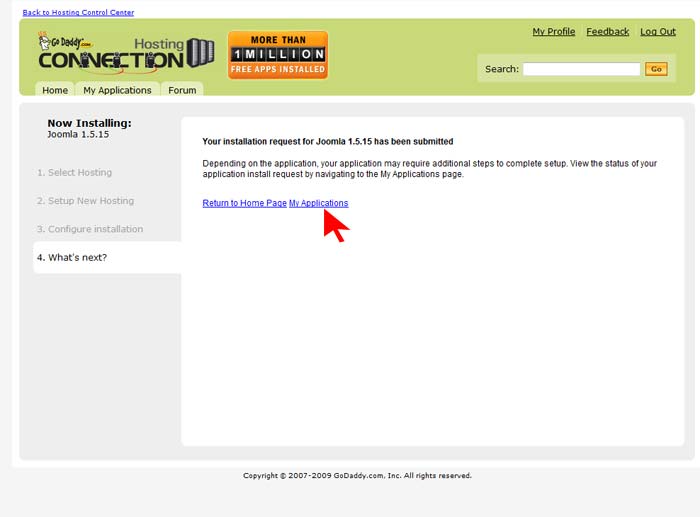
7. You should get confirmation from GoDaddy that your Joomla installation has been requested successfully. Click My Applications link to check the status of your Joomla installation.
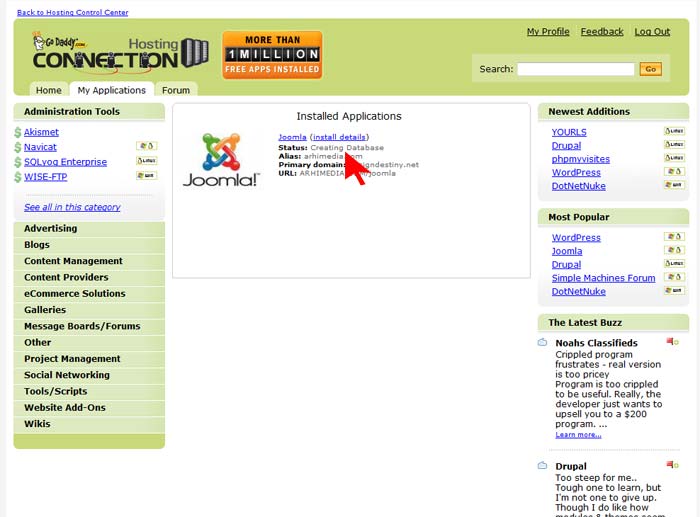
8. On the My Applications page, you should wait until status of your Joomla installation. Please wait until status is marked as Installed. This may take from several minutes to one hour, depending of GoDaddy's server.
Once the status is marked as Installed, you can check your Joomla frontpage on www.yourdomain.com/joomla_directory and login to the Joomla backend panel on www.yourdomain.com/joomla_directory/administrator using superadministator's username and password that you set on Step 6c.
Once the status is marked as Installed, you can check your Joomla frontpage on www.yourdomain.com/joomla_directory and login to the Joomla backend panel on www.yourdomain.com/joomla_directory/administrator using superadministator's username and password that you set on Step 6c.
Thanks to Hot Joomla for this guide
How To Install Joomla on GoDaddy Host by Hot Joomla


 Marina's and resorts across Fiji are taking the lead in shark conservation. The International Shark-Free Marina Initiative works with marinas, boaters and fishermen to develop policy designed to protect a vital component of the oceans health, our sharks. Thanks to funding from Project AWARE Foundation and under the leadership of Stuart Gow from Matava- Fiji's Premier Eco Adventure Resort, 13 marinas and fishing charters on Fiji's tropical islands have already signed their commitment.