GoDaddy.com is #1 domain registrar and one of the most popular web hosting providers worldwide. Their prices are very competitive and you don't have to sign up long-term contracts. We experimented with this hosting provider for some time. Based on our experiences, we can say that GoDaddy Linux hosting packages are 100% compatible with Joomla. GoDaddy also have a way to install Joomla quickly for your hosting account. We will explain the procedure here in all possible details.
1. Login toGoDaddy.comGoDaddy.com and click Hosting from the left menu. Then click Manage next to your hosting account name. This will lead you to the hosting control panel.
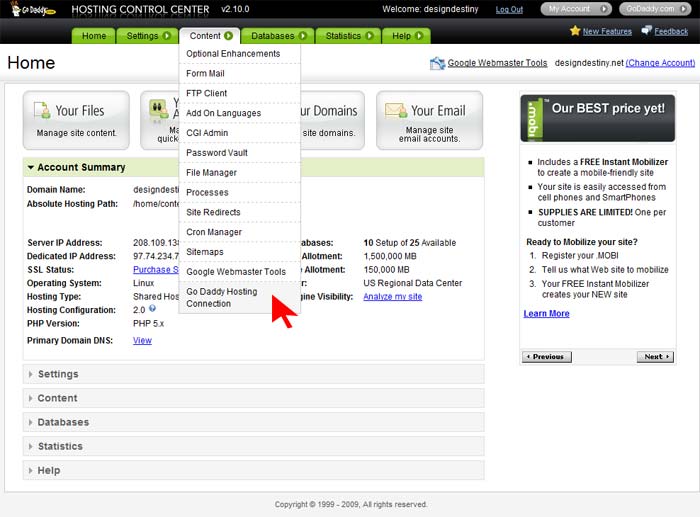
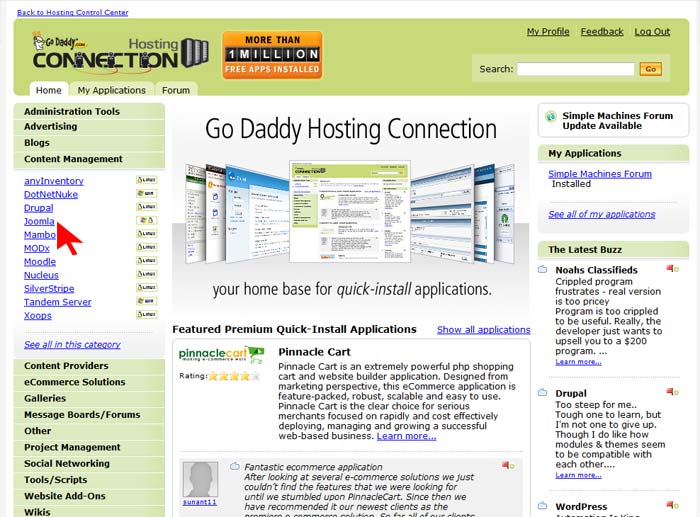
3. You are now on GoDaddy Hosting Connection page. Under Content Management menu item (left menu), click Joomla.
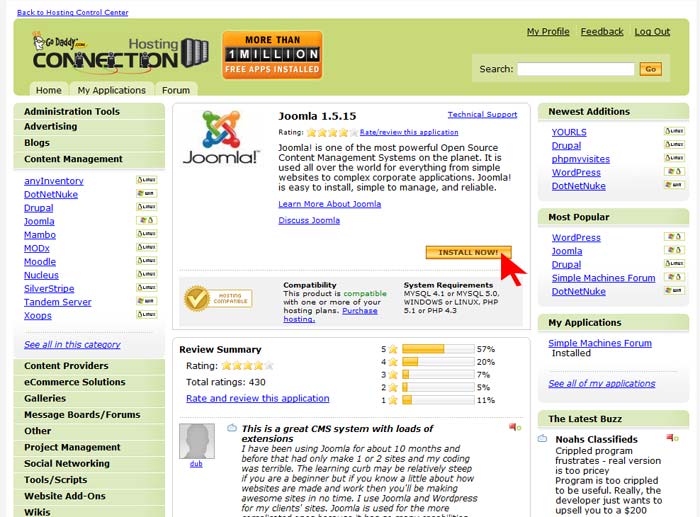
4. As you already know, Joomla is second to none! :) However, on the next page, you can see reviews about Joomla from other GoDaddy users. On this page, you can check if your GoDaddy hosting package is compatible with Joomla or not. If yes, you can proceed by clicking the yellow Install Now! button. Please wait several seconds until your request is processed.
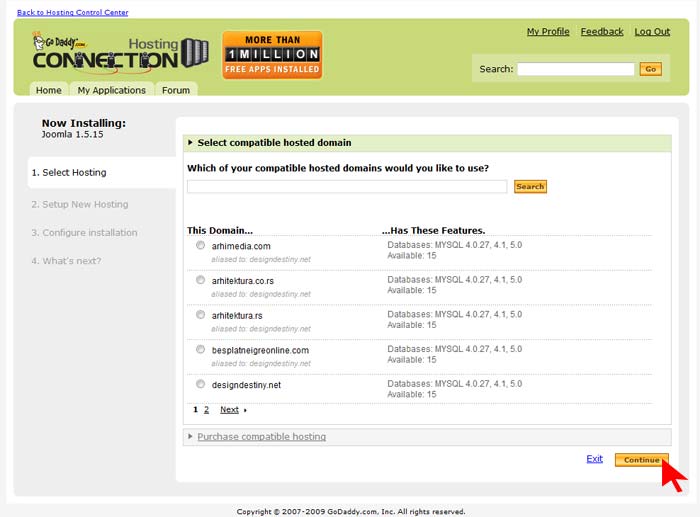
5. Now, you see the list of your domains where you can install Joomla. Keep in mind that your account must have at least one free MySQL database available. Select desired domain and click Continue button.
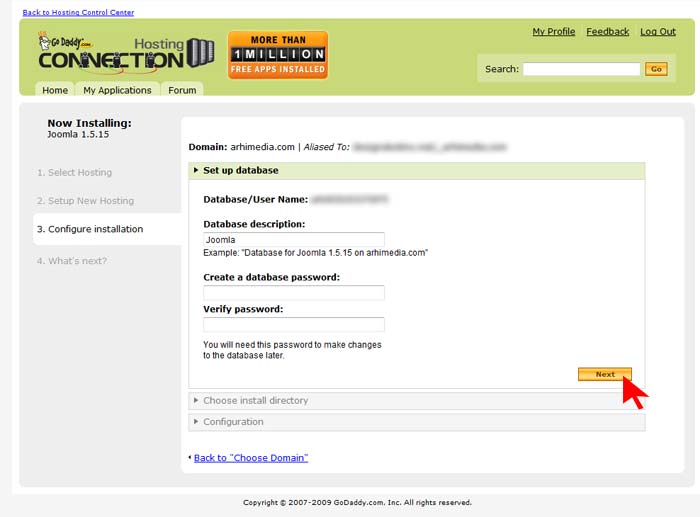
6. On the next screen you should configure several options needed for your Joomla installation. a) Set up database: GoDaddy automatically created database for you and assigned an user with the same name to it. So, you should only enter database pasword twice under this tab. Keep in mind that your password must be 7-14 characters long and have at least one uppercase letter, one lowercase letter and one number.
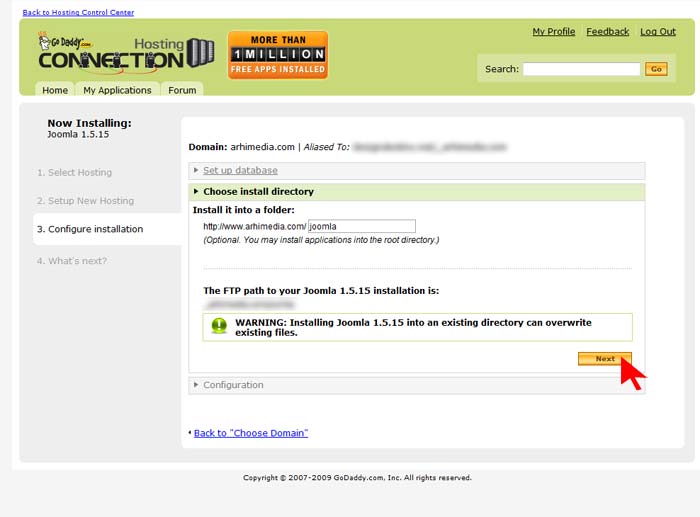
b) Choose install directory: Decide whether to install Joomla in a subdirectory on in the root. If you want to install in the root, leave this field empty, otherwise type subdirectory name. If you already have Joomla installed in the selected directory, it may be overwritten. Proceed by click on the Next button.
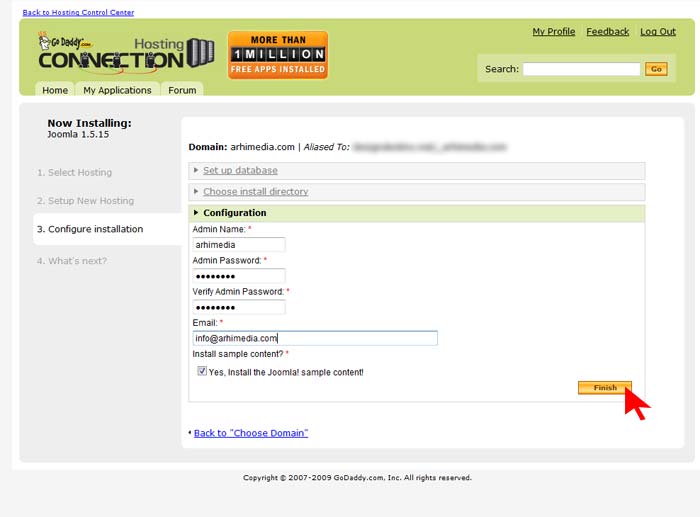
c) Configuration: Here you should enter information about your Joomla superadministrator's account. You need to enter superadministrator's username, password and valid e-mail address. For Joomla newbies, it is strongly recommended to install Joomla sample data, so leave the last option selected. Finally, click the Finish button.
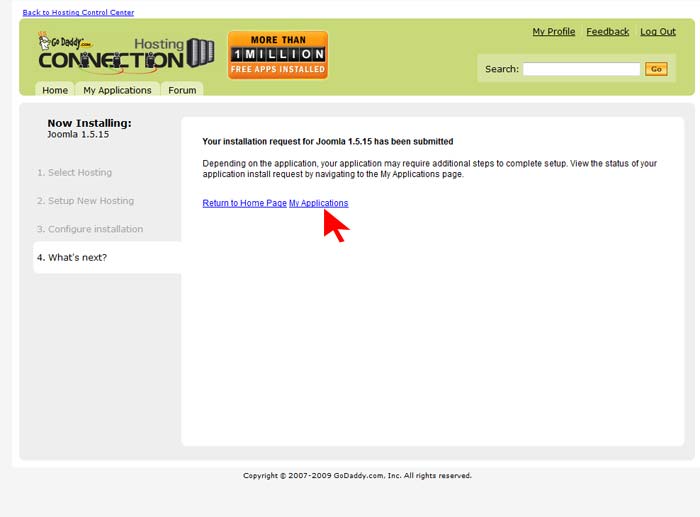
7. You should get confirmation from GoDaddy that your Joomla installation has been requested successfully. Click My Applications link to check the status of your Joomla installation.
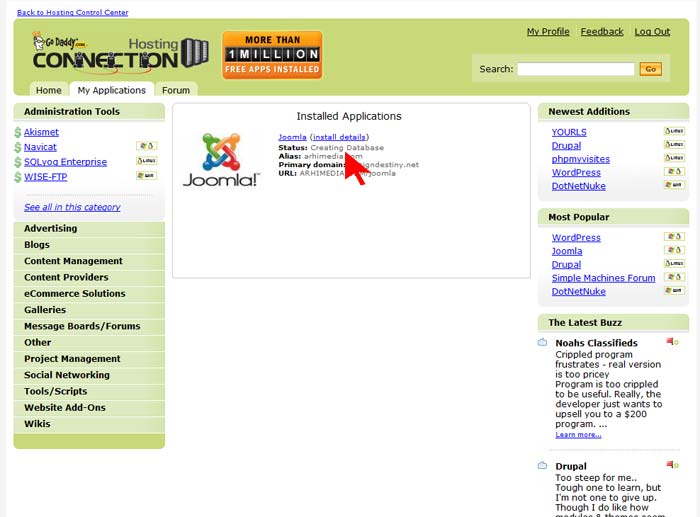
8. On the My Applications page, you should wait until status of your Joomla installation. Please wait until status is marked as Installed. This may take from several minutes to one hour, depending of GoDaddy's server. Once the status is marked as Installed, you can check your Joomla frontpage on www.yourdomain.com/joomla_directory and login to the Joomla backend panel on www.yourdomain.com/joomla_directory/administrator using superadministator's username and password that you set on Step 6c.
Conclusion:
GoDaddy is a hosting provider 100% compatible with Joomla (Linux packages)
It's possible to install Joomla easily through GoDaddy control panel
Building a great website is tough, but finishing the code and layout is only half the story. Too many sites have problems after going live because they weren't tested properly first.
Lots of things can and do go wrong, from poorly formatted code that some browsers choke on, to pages that break when opened on other platforms. If you developed your site on a Mac, what guarantee do you have that it'll look the same on a PC, for example?
Even now, when HTML structures are likely to be served as part of a CMS template system, it's important that all the basics are in place. You need a soak test: a checklist of crucial areas that you can test are working before the site goes live.
That's exactly what we've put together here. Follow our tips and your site will be as problem-free as possible.
Joomla! is one of the most powerful Open Source Content Management Systems on the planet. It is used all over the world for everything from simple websites to complex corporate applications. Joomla! is easy to install, simple to manage, and reliable.
Google, Yahoo and Bing integrated the real time search results on their pages. Before that as well they were showing the facebook profile page of facebook users on their search results for certain keywords. If you want to hide your facebook profile (for some personal reasons) from indexing on search engines like google, Yahoo, Bing etc then you can use the Privacy Settings properly to control that.
Privacy Settings to avoid showing your profile on Search Engines
1. Login to your facebook account and go to the Settings tab at top – right corner of profile page
2. Select “Privacy Settings” from the dropdown
3. Select “Search” from the list of security options
4. Click on “Change Settings”, a popup will prompt asking for your facebook password
5. Enter you password and then uncheck the box “Allow Indexing” under Public Search ResultsYou should complete this settings changes just after creating your account as it is difficult to avoid showing your profile after indexing is done. Your profile indexing may take at least 5 – 6 days for completion, so remove the check under this period only.
After searching numerous blogs and not finding the exact resolution that I was looking for; I finally found some information that was specific for me and am hoping that this will help others in not having to spend hours of searching for an answer.
"I installed Joomla on the Remote Host (Godaddy) only. I created website. Cannot figure out how to make it show up at main site http://www.domain.com instead of http://www.domain.com/joomla. Don't know how to move it to main directory..." (user: MattieSunshine)
The following is a snipet from the above forum, where if you are using GoDaddy as your service provider, then you will find these two answers just what you may be looking for:
"... If there is nothing else in the root of your site www.domain.com other than the default Go Daddy files and folders, then in the File Manager of the Hosting Control Center, select the joomla folder in the right pane and click the move button and choose the root of the site from the left pane as the destination. Once that is finished, edit the configuration.php tmp and log paths to reflect this new location (just remove the /joomla)..." (user: 2ninerniner2)"
Response directly from GoDaddy...
"These are all great solutions. If you only need to create a redirect you may also find the Sites Redirect Manager helpful. You can redirect your site from http://www.domain.com to http://www.domain.com/joomla. (user: GoDaddy)
#1 -- create an .htaccess file inside the /webroot/ with the contents:
Code:
RewriteBase /
# Add trailing slash if path does not contain a period or end with a slash RewriteCond %{REQUEST_URI} !(\.|/$) RewriteRule (.*) http://yoursite.com/$1/ [R=301,L]
#Change http://yoursite.com to http://www.yoursite.com (Optional) #RewriteCond %{HTTP_HOST} ^yoursite.com$ #RewriteRule ^/?(.*)$ http://www.yoursite.com/$1 [R=301,L] #### Rewrites http://www.yoursite.com/subdir to http://www.yoursite.com/ ## Added this to allow existing files and directories to work RewriteCond %{REQUEST_FILENAME} !-f RewriteCond %{REQUEST_FILENAME} !-d ## Now the rewrite of subdir to rootdir RewriteCond %{REQUEST_URI} !^/joomla RewriteRule ^(.*)$ joomla/$1 [L]
#2 -- rename the standard /webroot/joomla/htaccess.txt file to /webroot/joomla/.htaccess file (no .txt). Change "#RewriteBase /" to "RewriteBase /joomla"
#3 -- In joomla/configuration.php, set $live_site to var $live_site = 'http://yoursite.com';
Hosting Joomla on GoDaddy (www.godaddy.com) can be challenging, but many people choose the ISP because of the low price of their hosting, their size, and the nearly perfect up-time record on their servers. Here are a few tips that will help you get Joomla running on GoDaddy with minimum fuss.
When installing Joomla to GoDaddy:
Think twice before using the Value Added Application (VAA) installer -- If you use the Joomla version that installs under the VAA menu, it won't install at your root folder, but instead in the directory \joomla. That means when a visitor types in your direct URL, they won't be taken directly to the Joomla site. Also, by downloading (from www.joomla.org) and installing manually, you can choose the Joomla version # you want to use.
Edit the htaccess.txt file -- For Search Engine Friendly (SEF) URLs, you will need to edit the htaccess.txt file to turn on the RewriteBase option. In the file, you will find a line that reads #RewriteBase / that you need to change to RewriteBase / -- remove the pound (#) sign.
Rename htaccess.txt -- You need to rename the htaccess.txt to .htaccess which you can do from your FTP program.
To configure Joomla once installed:
Turn on Search Engine Friendly (SEF) in the Global Configuration (GC) -- To make sure you have the best search engine page ranking, turn on both the SEF and the mod_rewrite options on the GC screen.
Turn on caching in the GC -- The slowest aspect of GoDaddy Joomla hosting is the shared access to MySQL. By turning on caching, a page will be stored as a standard HTML when accessed (the home page, for example). If the next time the page is referenced the cached version hasn't expired, it will simply send the stored file instead of reconstructing the page from the MySQL database.
These tips should help you configure and run Joomla on GoDaddy for best performance and Search Engine Optimization (SEO).
GoDaddy are one of the largest and least expensive web hosts around. We run a number of websites on GoDaddy with no issues and are quite satisfied with the performance.
Plans start from just $4.99 and features include unlimited domain names and an automated Joomla installer.
Support is not the fastest we have experienced but we think the combined package is excellent value for money.